How to Set Up Dual-GPU Systems for the Ultimate Gaming Rig
28 February 2026
Want to push your gaming setup to the limit? Thinking of going all-in with two mighty GPUs to power your 4K, ultra-wide, max settings dreams? Then buckle up, because this guide will take you through everything you need to know about setting up a dual-GPU system for the ultimate gaming experience. From hardware compatibility to software optimization, and every sweaty palm moment in between, we’ve got you covered.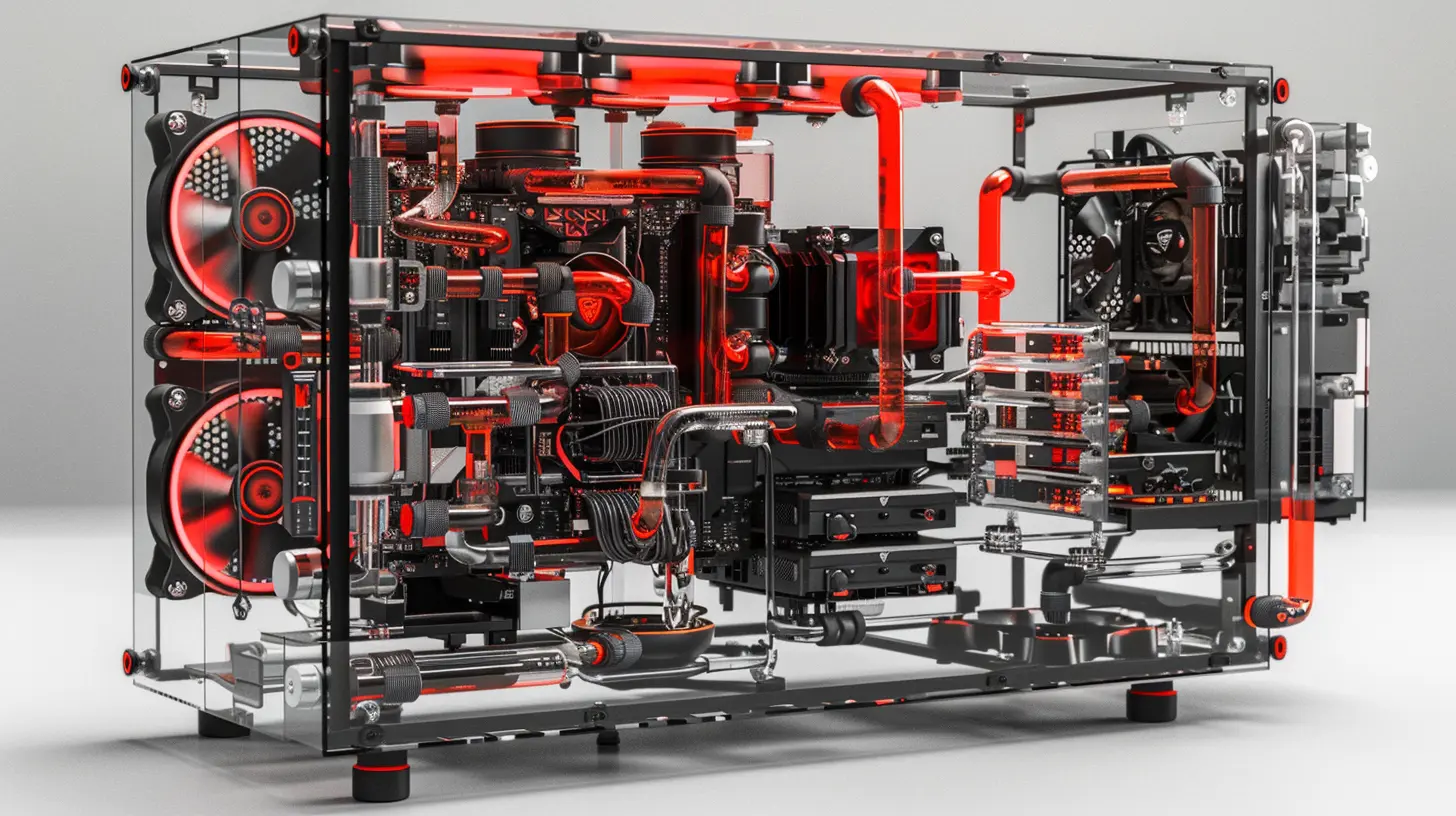
🧠 What’s the Big Deal With Dual-GPU Systems?
First things first—why would anyone want two graphic cards in a single rig?In theory, slapping in two powerhouse GPUs into your setup gives you double the rendering power, higher frame rates, better GPU compute capabilities, and smoother gameplay at ultra resolutions. Games that support multi-GPU setups can split the workload between cards, letting one handle even frames and the other odd ones (known as Alternate Frame Rendering), or split the screen in half (Split Frame Rendering).
Sounds magical, right? Well, kind of.
Dual-GPU setups can be amazing, but only if everything plays nicely together. There’s a bit of software finesse involved, and not all games are on board with the multi-GPU party. But don’t worry—that’s exactly why we’re here.
🛠️ Hardware You’ll Need to Set Up a Dual-GPU Rig
Before you jump in, let’s talk about the gear. No point in dreaming big if your motherboard’s giving you side-eye already.1. Two Compatible GPUs
You might think, "Can I mix and match?" Not really.- For NVIDIA cards, you’ll need two cards from the same series that support NVIDIA SLI (Scalable Link Interface).
- For AMD cards, you're looking at CrossFire (though AMD has quietly stepped back from it in favor of better single-card performance).
SLI and CrossFire aren’t supported by all GPUs. Check the specs before you buy.
2. A Motherboard That Supports Multi-GPU
Look for motherboards with multiple PCIe x16 slots and chipset support for multi-GPU. Features like SLI support or CrossFire support should be mentioned clearly in the specs.Pro tip: Not all PCIe x16 slots run at full speed when both are occupied. The second one might be limited to x8 or x4, which could bottleneck performance. Quality chipsets like Intel Z590 or AMD X570 are better bets.
3. Beefy Power Supply (PSU)
Two GPUs are hungry. Think Thor after Ragnarok. You’ll want at least an 850W PSU, but possibly more depending on your GPU models. Don’t cheap out—go for a certified, high-quality PSU.4. Adequate Cooling
Two GPUs will cook your rig faster than Mom makes pancakes. Invest in high airflow cases, extra fans, or even liquid cooling if you’re feeling fancy. Thermal throttling is the mood-killer you don’t want.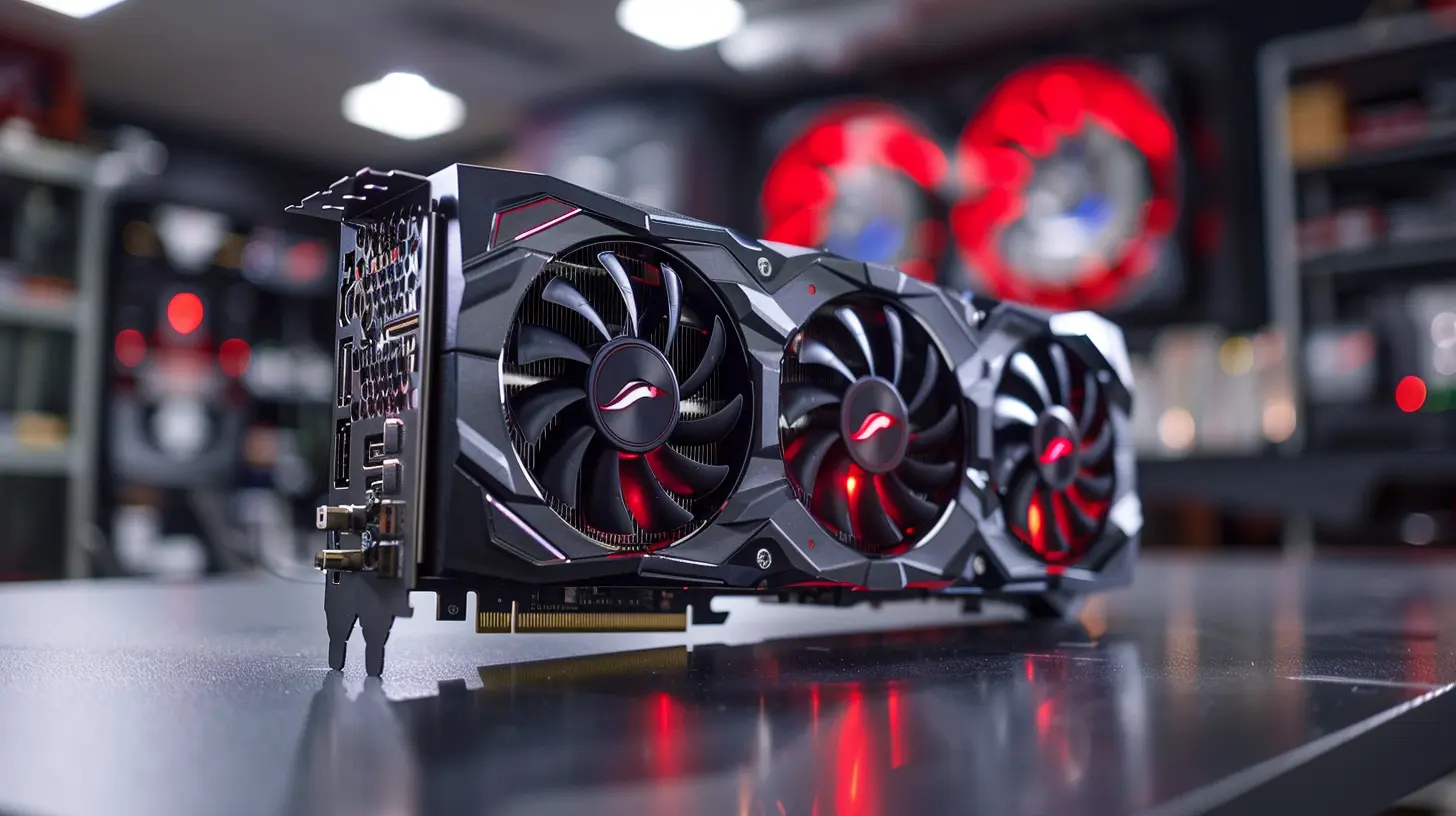
🧩 Planning for Dual-GPU Layout
Once you’ve got the right gear, layout matters.Space Considerations
High-end GPUs are chonky. Make sure both cards can physically fit in your case without blocking each other's airflow. Ideally, leave a gap of at least one slot between the GPUs.Install Bridge Connectors (If Needed)
- SLI Bridges are required for most older NVIDIA dual-GPU setups.- Newer NVIDIA cards use NVLink, which is faster and more efficient.
- Some AMD setups using CrossFire don’t require a bridge at all—just a PCIe connection.
Check your card model and don’t assume universal compatibility.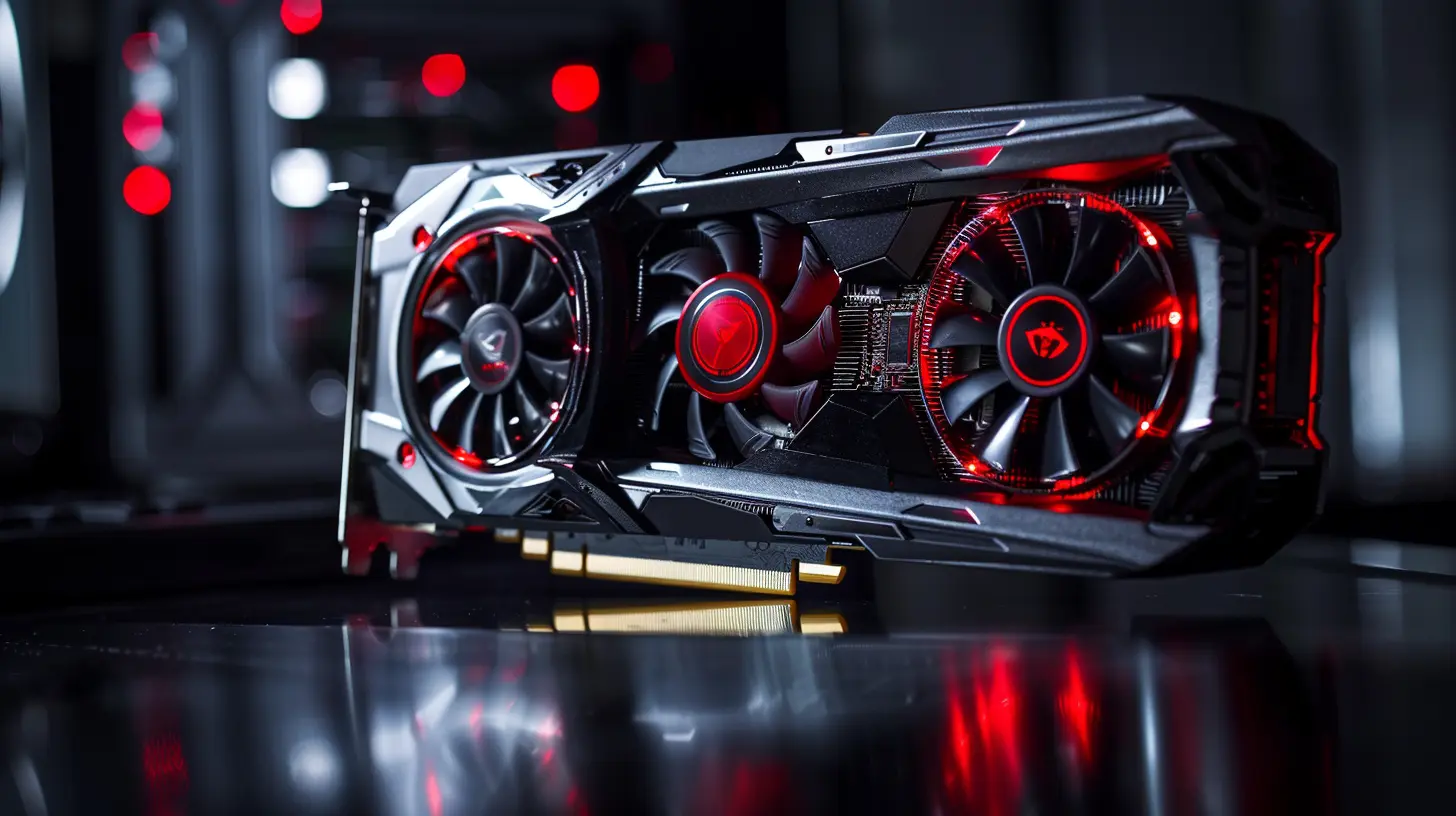
🖥️ Setting it All Up: Step-by-Step
Alright, ready to get your hands dirty? Let’s do this.Step 1: Install the First GPU
Pretty straightforward. Slot the first GPU into the primary PCIe x16 slot, screw it in, and connect your PCIe power cables.Step 2: Install the Second GPU
Slot the second GPU into the secondary PCIe slot. Again, screw it in, and connect power cables. If your GPUs require a bridge, connect it securely.Step 3: Boot into BIOS
Pop into BIOS/UEFI and make sure both PCIe slots are enabled. Sometimes motherboards disable secondary slots by default.Step 4: Install GPU Drivers
Once you boot into Windows:- Download and install the latest GPU drivers from NVIDIA or AMD.
- For Nvidia users, install GeForce Experience, which can detect SLI-compatible apps and enable them.
- For AMD, the Adrenalin Software handles CrossFire settings.
Step 5: Enable Multi-GPU Support
- On NVIDIA: Right-click the desktop > NVIDIA Control Panel > Set SLI Configuration > Enable SLI.- On AMD: Open Adrenalin > Settings > Graphics > Enable CrossFire.
Step 6: Benchmark and Test
Fire up a game or benchmarking software like 3DMark to see those frames fly. Compare performance with and without multi-GPU enabled to make sure it’s actually working.🎮 Real Talk: Do All Games Support Dual-GPU?
Here’s the curveball—no. A lot of modern games are either not optimized for multi-GPU or flat-out don’t support it. Some devs think it’s more effective to optimize for powerful single GPUs instead of worrying about combining two.Games Friendly with Multi-GPU:
- GTA V- Shadow of the Tomb Raider
- Metro Exodus
- Far Cry 5
- Rise of the Tomb Raider
Not-So-Friendly Games:
- Call of Duty: Warzone- Red Dead Redemption 2
- Cyberpunk 2077 (limited support)
- Valorant (not worth it)
So, check support status before you go dual. Sometimes, your second GPU might just sit there and sip power like an idle intern.
🧪 Optimizing Your Dual-GPU Setup
If you’re committed to going dual, make it shine. Here are some bonus tips:1. Keep Your Drivers Updated
This one's obvious but crucial. Manufacturers tweak support and performance for games frequently.2. Disable V-Sync (Sometimes)
V-Sync can mess with frame delivery in multi-GPU environments. Try turning it off to see if you get smoother performance.3. Tweak Game Settings Individually
Every game handles multi-GPU differently. Dive into per-game graphics settings. Some might need a restart (or even a config file edit) to properly utilize both cards.4. Monitor Temps and Usage
Use tools like MSI Afterburner, HWMonitor, or GPU-Z to keep tabs on temperatures, clock speeds, and load. If one GPU’s sleeping while the other’s breaking a sweat, something’s wrong.🔥 Is It Worth It in 2024?
That’s the million-dollar question.Pros:
- More graphical power if games support it- High-resolution gaming (1440p or 4K)
- Flexibility for GPU-intensive tasks (like rendering and streaming)
Cons:
- Poor game support- Driver issues and complexity
- Higher power consumption and heat
- More noise (two fans, remember?)
Chances are, a powerful single GPU like the RTX 4080 or RX 7900 XTX will give you better overall compatibility and fewer headaches.
But if you’re a hardware geek who loves pushing boundaries and owning something that screams "absolute unit," then dual-GPU is still a sick project.
💡 Alternatives to Dual-GPU in 2024
Want performance without the multi-GPU pain? Consider these:- Upgrade to a single beast GPU — easier, cleaner.
- Use a GPU + eGPU setup for laptops or tight builds.
- Offload tasks — dedicate one GPU to gaming, another to streaming or rendering (not SLI, just multitasking).
🏁 Final Thoughts
Setting up a dual-GPU system isn’t for the faint-hearted. It’s not plug-and-play magic. It needs patience, the right gear, and quite a bit of tinkering to shine. But when done right, it’s like firing up a rocket ship—blisteringly fast, insanely powerful, and kind of over-the-top in the best possible way.Want the ultimate bragging rights? Or dreaming of crushing 4K at 144Hz with ray tracing on? Dual-GPU might just be your ticket—just know what you're getting into.
So, are you ready to double down?
all images in this post were generated using AI tools
Category:
System RequirementsAuthor:

Brianna Reyes
Discussion
rate this article
2 comments
Mitchell Barlow
Ensure compatibility and cooling to maximize performance in dual-GPU setups!
March 4, 2026 at 4:49 PM
Brianna Reyes
Great point! Proper compatibility and cooling are crucial for optimal performance in dual-GPU setups. Thanks for highlighting that!
Jet McLaurin
Awesome guide! Setting up a dual-GPU system sounds like a game-changer for performance. Can't wait to boost my rig and dive into epic gaming! 🎮✨
March 4, 2026 at 5:52 AM
Brianna Reyes
Thanks! Enjoy the boost in performance—happy gaming! 🎮✨