How to Enable Cross Play on Popular Consoles
2 July 2026
Have you ever tried to play a game with your friends, only to realize they’re on a different console than you? Kinda feels like showing up to a party in costume when everyone else is in formal wear — awkward! But guess what? Those walls are crumbling down, and cross play is the wrecking ball that’s making it possible.
Cross play is one of the best things to happen in gaming — finally, Xbox players can face off with PlayStation users, and even those on Nintendo and PC can jump into the same match. It’s a beautiful time to be a gamer. But enabling cross play? That’s the tricky part if you don’t know what buttons to press.
Don't worry, though. I’ve got your back! In this guide, we’re diving into how to enable cross play on popular consoles (like Xbox, PlayStation, and Nintendo Switch), what games allow it, and some tips to make sure everything runs smoothly.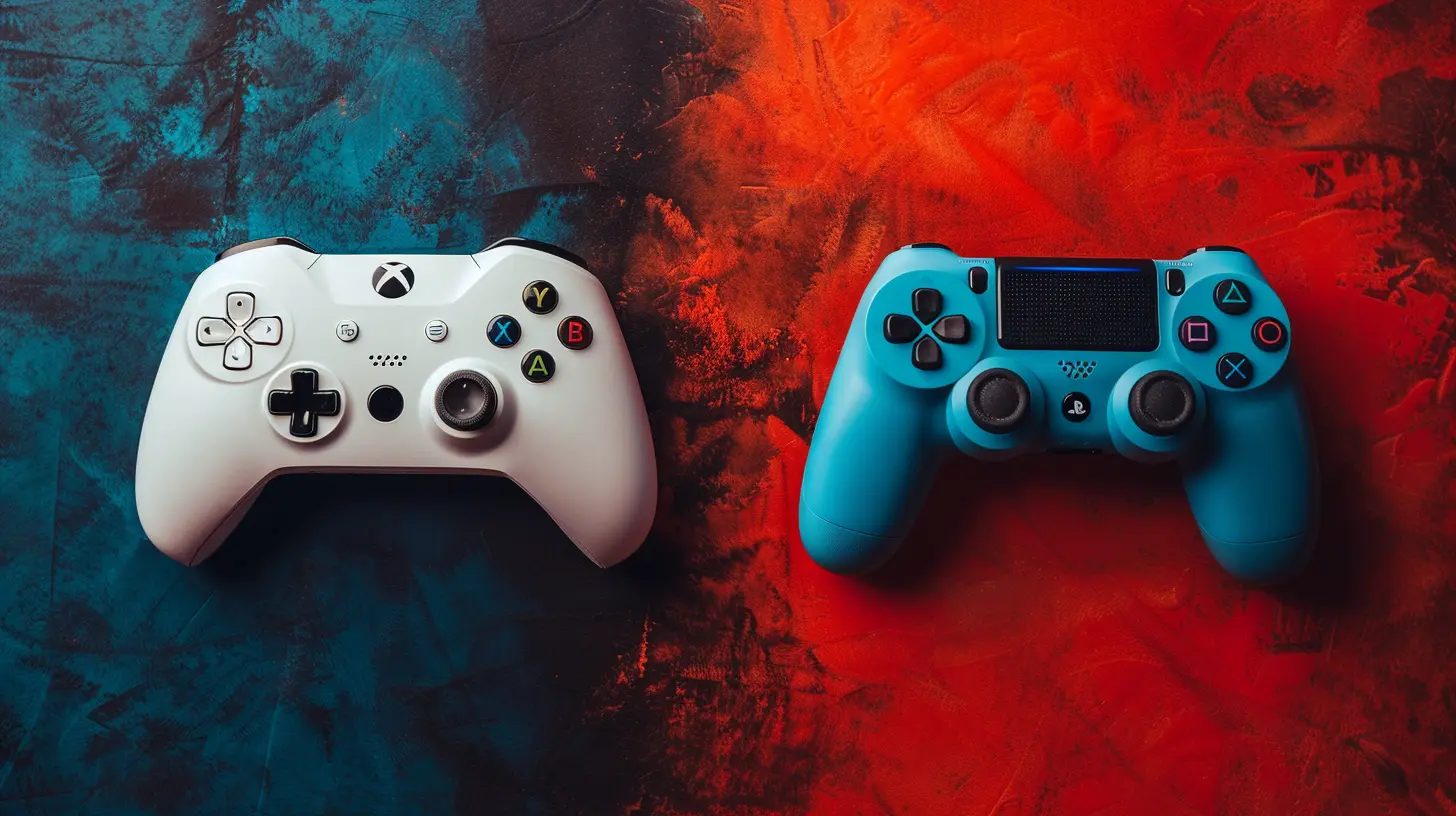
What is Cross Play Anyway?
Before we get into the nuts and bolts, let’s talk about what cross play actually is. Cross play (also written as cross-play or cross-platform play) is a feature that lets players from different gaming platforms play together in one multiplayer game.For example, your buddy on PS5 can team up with you on an Xbox Series X to dominate a match in Fortnite. This used to be the stuff of legends not too long ago. Now? It’s the future.
Not all games support it, and not all developers enable it by default — so you’ve gotta activate it yourself most of the time.
Why Bother With Cross Play?
Honestly, why wouldn’t you?- Play With Everyone: No more "you need to get an Xbox to play with us" drama.
- Faster Matchmaking: You'll find games quicker since you’re matched with a bigger player pool.
- Game Freedom: You can buy the console or platform you want without worrying who’s using what.
Think of it like having a universal charger — you don’t need to change devices to connect. Just plug in and go!
General Checklist Before Enabling Cross Play
Before we get into how to enable cross play on your specific console, let’s go over a quick checklist:✅ Make sure the game supports cross play
✅ Have a stable internet connection
✅ Link your game account (Epic, Activision, EA, etc.)
✅ Update your game and console firmware
✅ Enable privacy settings to allow cross-network play
Alright, ready to roll? Let’s break it down by console.
How to Enable Cross Play on Xbox Consoles
Whether you’re on Xbox One, Series S, or Series X, Microsoft has really leaned into cross play. Most of the heavy lifting is already done for you.Step-by-Step Guide:
1. Sign in to Your Xbox AccountMake sure you’re logged in with your primary Xbox account.
2. Open Settings
Navigate to `Profile & System` → `Settings`.
3. Go to Privacy & Online Safety
Then head to `Xbox Privacy`.
4. Customize Your Settings
Select `View Details & Customize`, then click on `Communication & Multiplayer`.
5. Enable Cross-Network Play
Make sure the option that says “You can join cross-network play” is set to Allow.
6. Save and Exit
Boom. That’s it! Now, assuming the game you’re playing supports it, you’re good to go.
Pro Tip: Games like Call of Duty and Fortnite have in-game settings to toggle cross play on or off. Make sure it’s also turned on there!
How to Enable Cross Play on PlayStation Consoles
Sony took a little longer to jump on the cross play train, but hey — better late than never, right? Whether you’re on PS4 or PS5, enabling cross play is usually game-specific.Step-by-Step Guide:
1. Update Your System and GameMake sure everything’s up to date.
2. Launch the Game
Cross play is enabled inside the game settings for most titles like Fortnite, Apex Legends, and Warzone.
3. Find the Cross Play Option
Navigate to the in-game settings or account settings. You’ll usually find an option that says “Cross Play: On/Off”.
4. Enable It
Toggle that bad boy on!
5. Sign in to or Link Your Game Account
Some games require you to link a third-party account like Epic Games or Activision.
Sony won’t let you do a lot of system-wide cross play tweaks, but once it’s on in-game, you’re good.
Remember, each game has its own rules. Some may require mutual Game IDs or friends lists to connect with players on other platforms.
How to Enable Cross Play on Nintendo Switch
Nintendo may not be the first name you think of when it comes to online multiplayer, but they’ve made big moves with games like Minecraft and Rocket League.Step-by-Step Guide:
1. Sign In to Nintendo Switch OnlineYep, you need that subscription for most games.
2. Update the Game and Firmware
Cross play usually doesn’t work on outdated software.
3. Launch the Game
Fire up your game that supports cross play like Fortnite, Minecraft, or Rocket League.
4. Go to Game Settings
Each game handles this differently, but in general, go to settings and find the cross play toggle.
5. Link Any Necessary Accounts
Minecraft, for example, requires a Microsoft account. Fortnite needs Epic Games.
6. Enable Cross Play
Turn it on and start playing with your friends on other consoles.
Nintendo doesn’t have a system-wide cross play switch, but once the account linking is done, the process is smooth.
Popular Games That Support Cross Play
Here’s a quick list of fan-favorites that support cross-platform multiplayer. You might already be playing some of them:| Game | Platforms Supporting Cross Play |
|------|-----------------------------|
| Fortnite | PS4, PS5, Xbox One, Xbox Series X|S, Switch, PC |
| Call of Duty: Warzone | PS4, PS5, Xbox One, Xbox Series X|S, PC |
| Minecraft | PS4, Xbox, Switch, PC, Mobile |
| Rocket League | PS4, Xbox, Switch, PC |
| Among Us | PS4, Xbox, Switch, PC, Mobile |
| Apex Legends | PS4, PS5, Xbox One, Xbox Series X|S, PC |
| Destiny 2 | PS4, PS5, Xbox, PC |
There are more games adding cross play every year, so always keep an eye out for updates in your favorites.
Troubleshooting Cross Play Issues
Okay, so you followed all the steps and it’s still not working? Yeah, that can be super frustrating. Let’s troubleshoot together:?️ Common Fixes:
- Restart Everything: Console, game, modem — the whole works.- Check In-Game Friend Lists: Some games have separate friend systems.
- Verify Linked Accounts: Log into your Epic, Activision, or EA account and make sure your console is properly linked.
- NAT Type: If your NAT type is “Strict” or “Moderate,” it might block communication with players on other platforms. Try to get it to “Open.”
- Update Software: You might just be one patch behind.
Still stuck? Forums and support pages for your specific game are goldmines of info.
Safety and Privacy Tips for Cross Play
Playing with more people means more strangers, which isn’t always a good thing — especially for younger gamers.Here are a few quick safety tips:
- Use Parental Controls: All major consoles offer parental controls to limit who can communicate with your child.
- Mute Other Players: Most games let you mute voice or text chat if it gets toxic.
- Block and Report: Don’t hesitate to block or report anyone who’s out of line.
- Private Matches: Use private lobbies when playing with friends. Keeps the weirdos out.
Think of the internet like a big city — lots of cool places, but you’ve gotta know which alleys to avoid.
Final Thoughts
We’re living in a time where the console wars are taking a back seat to better gaming experiences — and that’s awesome. Cross play breaks down barriers, connects friends, and makes great games even better.Setting it up might take a few clicks, but once you’re up and running, it’s smooth sailing. Just remember — the exact steps can vary slightly depending on the game, so always poke around the in-game settings too.
So, grab your controller, call your friends (even the ones on “the other console”), and jump into a match together. Because gaming is better, together.
all images in this post were generated using AI tools
Category:
Cross Platform GamingAuthor:

Brianna Reyes
Discussion
rate this article
1 comments
Sable Green
Cross play is more than just a feature; it symbolizes gaming's shift towards unity and shared experiences. As players connect across platforms, barriers dissolve, fostering a more inclusive community. It challenges traditional loyalties to consoles and reminds us that ultimately, we play for the joy of the game, not the brand.
July 4, 2026 at 2:41 AM
Brianna Reyes
Absolutely, cross play is a game changer. It not only connects players but also enriches the gaming experience. Let's focus on making it easy for everyone to jump in and play together.